Welcome to our handy guide on ‘How to See Blocked Numbers on Android.’ This article will provide easy to follow steps to unveil the hidden information behind blocked numbers.
Key Takeaways
- To view your list of blocked contacts on Android, go to the Phone app or Google Contacts app and select “Blocked Numbers” from the settings.
- The Messages app can also show you all texts from blocked numbers, and you can check if you’ve been blocked by calling from another phone.
Have you ever needed to ward off the persistent irritating calls or messages of spam advertisers, telemarketers, or perhaps an ex? Android gadgets offer a handy function that allows you to block bothersome numbers. Nonetheless, there might be situations when you want to dip back into your blocked number list, be it to unblock someone or to validate a number was successfully blocked in the first place.
Ready to start exploring? Great, we’ll guide you through three different routes you can take on your Android to access your list of blocked contacts: navigating via the Phone app, via Google Contacts app, and by the way of Messages app.
Why do we find it necessary to block contacts? Simply put, it’s an easy way to keep unwanted calls and texts at bay. It’s a surefire method to protect your peace and sanity from any undesirable communication coming your way.
From time to time, you may feel the need to revisit your blocked contacts list. This allows you to reassess if certain numbers should remain blocked or perhaps be reinstated. You may even discover that you’ve mistakenly blocked an important contact, giving you an opportunity to correct the mishap.
Exploring the blocked contacts list is also beneficial for parents who wish to maintain control over their child’s communication. By overseeing who is unable to contact their child’s number, parents are better equipped to ensure a secure environment for their offspring.
Using the Phone App
As a starting point, let’s navigate the process of identifying the blocked numbers using your Android’s inherent phone app. It’s important to remember that certain steps might differ according to your specific smartphone model. Navigate your way to the Phone or Dialer app, and bring up the menu to locate “Settings.”
Once in the settings tab, you’ll simply need to select “Blocked Numbers.”
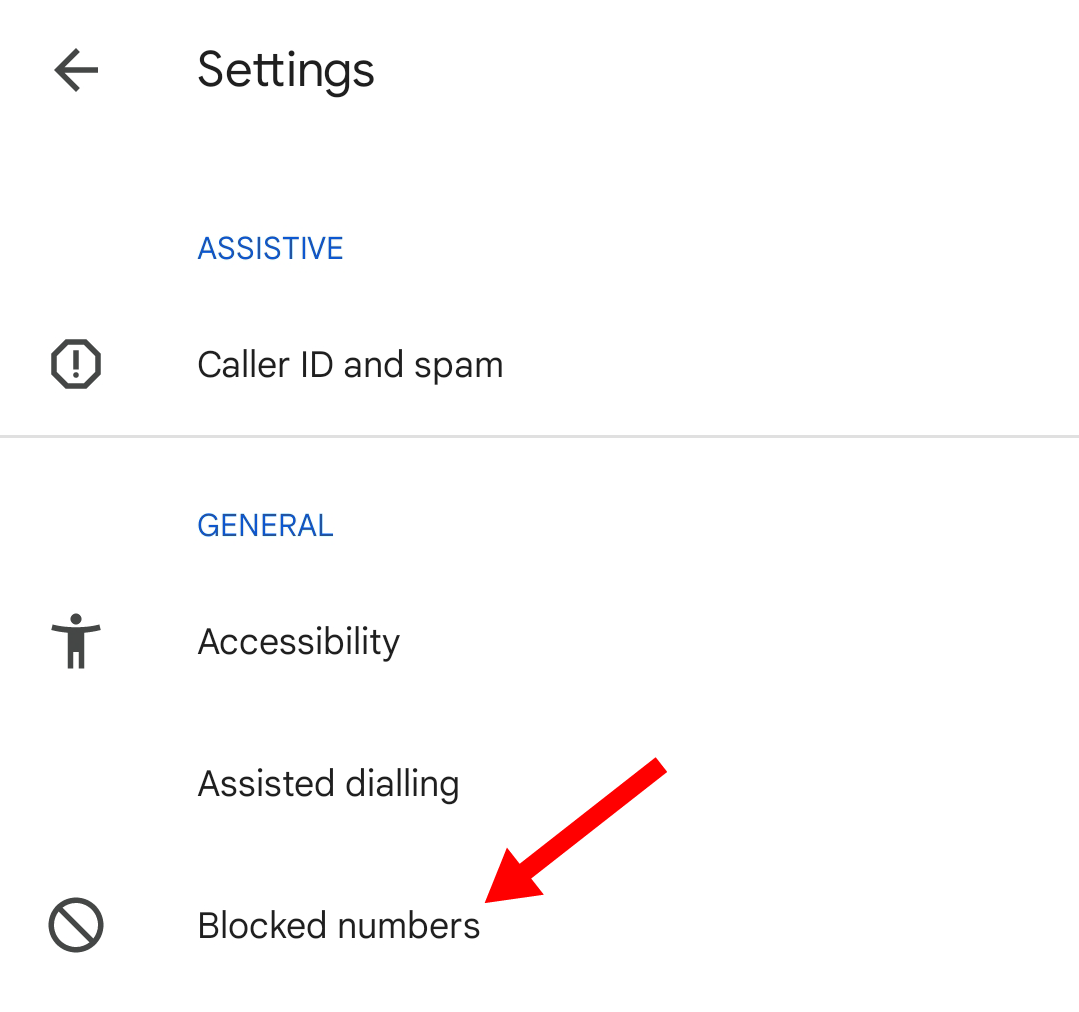
Once done, you’ll find yourself looking at a comprehensive list of all the phone numbers you’ve blocked on your Android device.
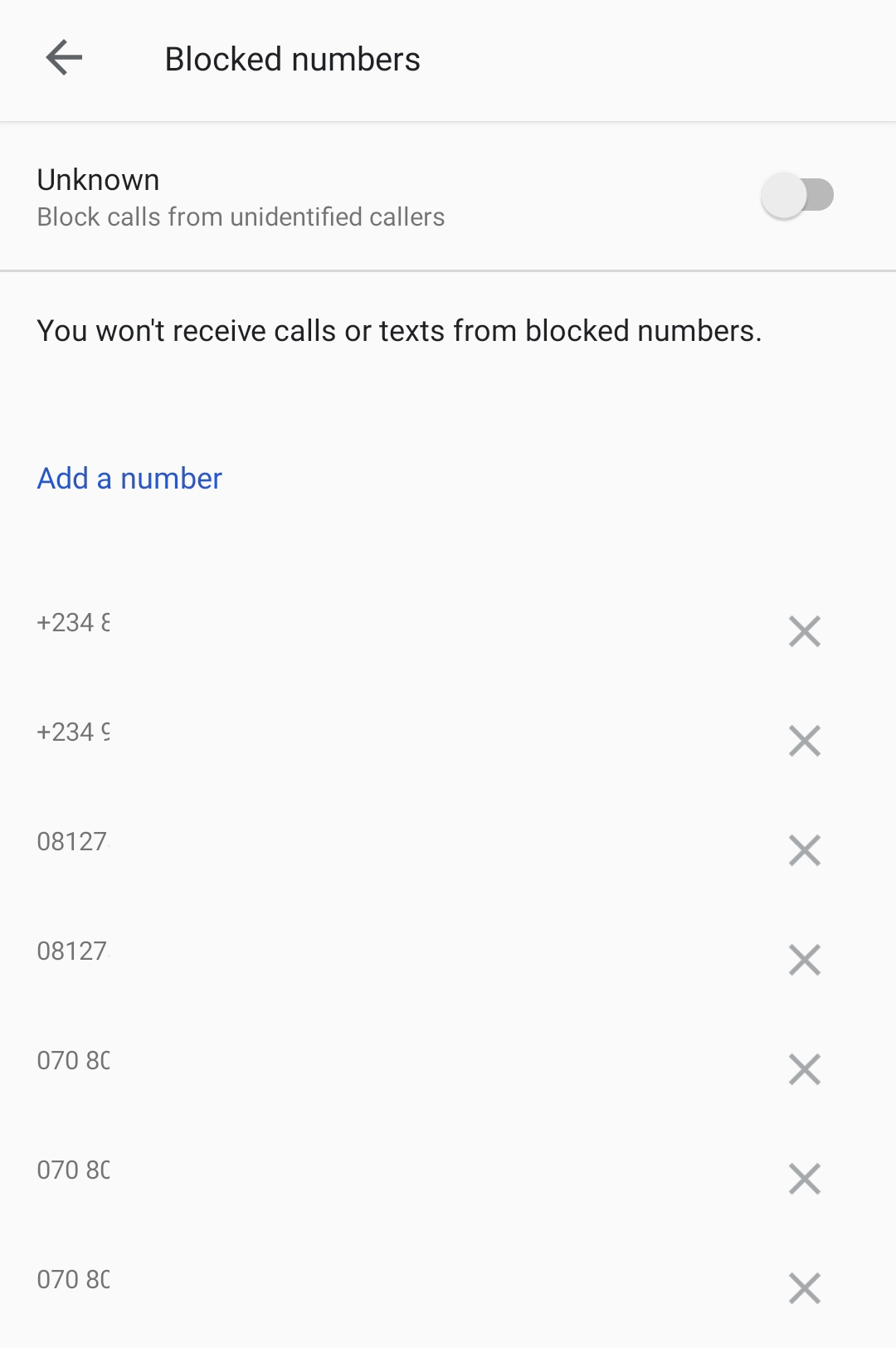
Finding the list of blocked numbers may differ slightly based on your device, but rest assured, there is typically a section in your phone’s settings where you can detect this list.
For those who particularly use the Google Contacts app—this is particularly common with Google Pixel phone users—it’s a breeze to find your catalogue of blocked contacts.
Start off by firing up the Google Contacts app. Next, navigate to the “Fix and Manage” tab located at the lower part of your screen. Within ‘Other tools’, you’ll spot the ‘Blocked Numbers’ option. By clicking on it, you will reveal the roster of blocked contacts.
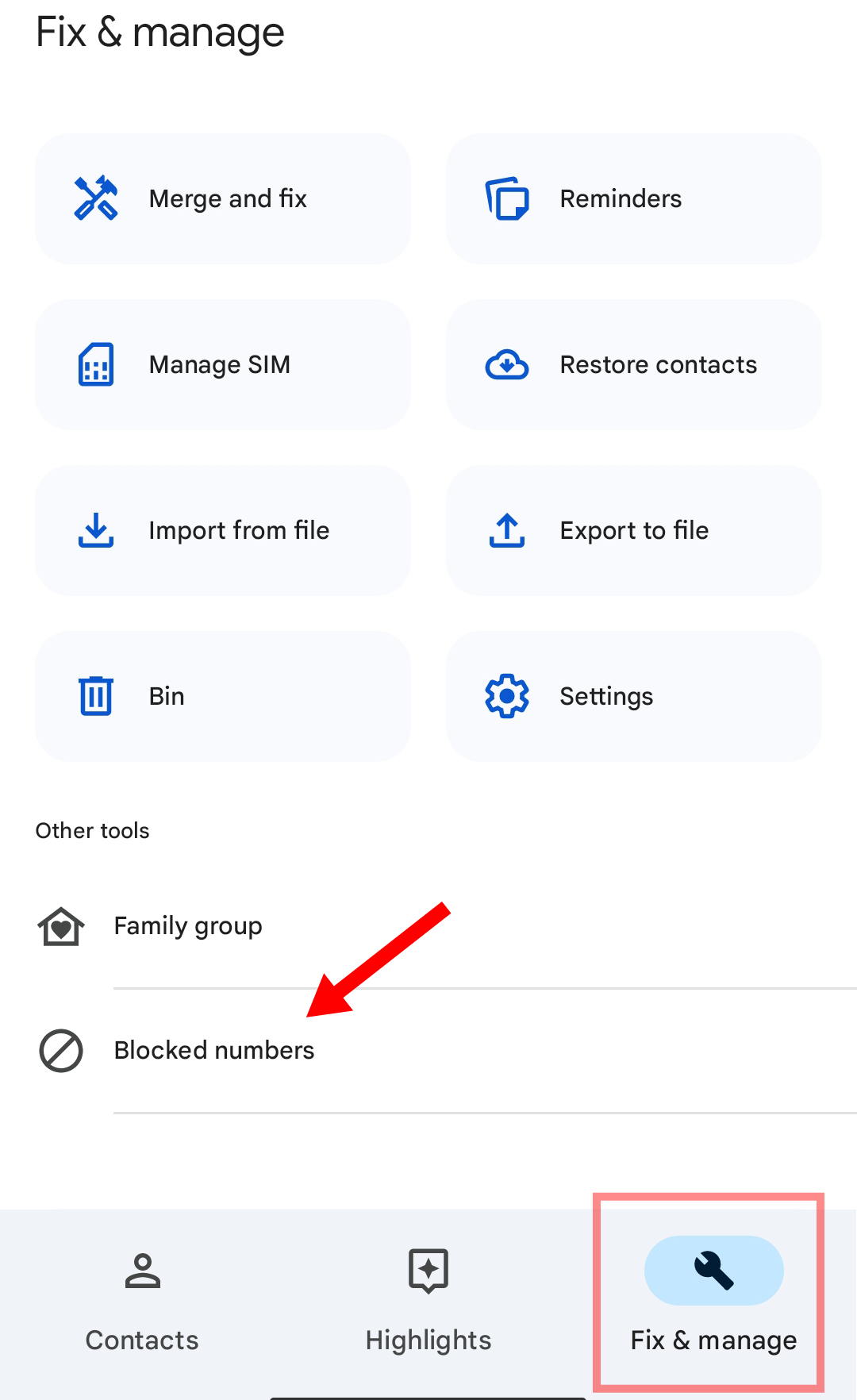
That’s all there is to it!
Using The Messages App
Discovering who’s on your blocked list via your Android’s Messages app is a simple way to uncover any texts you may have missed from blocked or spam numbers.
To start, launch your preferred Messages app and go straight to the Settings. Scout around for a category that references “Blocked Numbers.” Typically, you’ll spot this under the label “Spam and Blocked.”
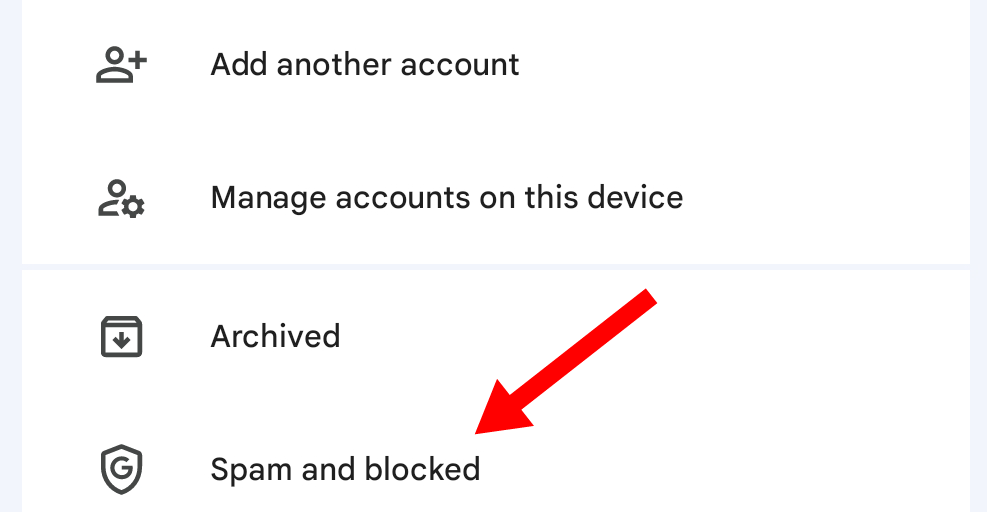
Navigating to this area will display all text messages from blocked numbers. This is a nifty way to periodically confirm that you haven’t inadvertently overlooked any important information you desired to access.
If you’re interested in unblocking contacts, it can usually be done effortlessly by simply clicking the number or the “X” next to it in the blocked numbers list. This list is conventionally located via Settings > Blocked Numbers. For more comprehensive steps, do check out our complete guide on how to unblock numbers.
How to Tell if You’ve Been Blocked
On occasion, the tables might turn, and you find yourself at the other end of a blocking situation. Unfortunately, Android doesn’t readily provide you with warnings or notifications to confirm if you’ve been blocked. You might suspect you’re blocked if your calls continuously go to voicemail or fail altogether. However, the culprit could be something as simple as the person having their phone switched off.
One more reliable method to determine if you’ve been blocked is as simple as wielding another phone to call the person’s number. If your call connects on a different phone, then chances are, you’ve indeed been blocked on your original device.